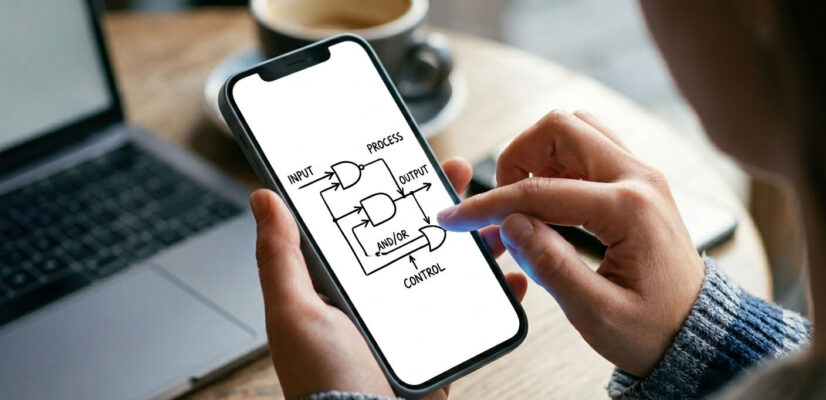
A veces hace falta realizar apuntes rapidamente y la mejor forma es usando nuestros dedos en la pantalla de nuestro móvil, sin escribir ni dejar notas de voz que las olvideramos en 24 horas o menos, se me ocurrió crear un plugin WordPress que permite dibujar tanto en modo desktop como en modo móvil en la pantalla lo que queramos recordar, rápido , un solo color (talvez luego vengan mas colores y opciones), y al terminar capturamos la pantalla y listo, tenemos una nota rapida de un diagrama o lo que queramos recordar..
Este es el codigo completo:
archivo : pizarra-online.php
<?php
/**
* Plugin Name: Online Whiteboard Shortcode
* Description: Adds a basic online whiteboard for freehand drawing using the [pizarra_online] shortcode.
* Version: 1.0
* Author: Roberto C. Aleman F.
* License: GPL v3
* Text Domain: pizarra-online
*/
if (!defined('ABSPATH')) {
exit; // Exit if accessed directly
}
// Register Shortcode
function po_registrar_shortcode() {
// Register styles and scripts
wp_register_style('po-pizarra-style', plugins_url('pizarra.css', __FILE__));
wp_register_script('po-pizarra-script', plugins_url('pizarra.js', __FILE__), array(), '1.0', true);
// Buffer HTML output
ob_start();
// Enqueue assets only if the shortcode is active
wp_enqueue_style('po-pizarra-style');
wp_enqueue_script('po-pizarra-script');
?>
<div class="po-pizarra-contenedor">
<canvas id="pizarraOnline" width="800" height="500"></canvas>
<div class="po-pizarra-controles">
<button id="btnLimpiar" class="po-btn"><?php _e('Clear Board', 'pizarra-online'); ?></button>
</div>
</div>
<?php
return ob_get_clean();
}
add_shortcode('pizarra_online', 'po_registrar_shortcode');
archivo: pizarra.css
@charset "utf-8";
.po-pizarra-contenedor {
max-width: 100%;
margin: 20px auto;
text-align: center;
font-family: system-ui, -apple-system, sans-serif;
}
#pizarraOnline {
background-color: #ffffff;
border: 2px solid #333333;
box-shadow: 0 4px 10px rgba(0,0,0,0.1);
cursor: crosshair;
display: block;
max-width: 100%;
height: auto;
margin: 0 auto 15px auto;
}
.po-pizarra-controles {
margin-top: 10px;
}
.po-btn {
background-color: #333333;
color: #ffffff;
border: none;
padding: 10px 20px;
font-size: 14px;
cursor: pointer;
border-radius: 4px;
transition: background 0.2s ease;
}
.po-btn:hover {
background-color: #555555;
}
archivo: pizarra.js
document.addEventListener("DOMContentLoaded", () => {
const canvas = document.getElementById("pizarraOnline");
if (!canvas) return;
const ctx = canvas.getContext("2d");
const btnLimpiar = document.getElementById("btnLimpiar");
// Stroke setup (Default: Black)
ctx.strokeStyle = "#000000";
ctx.lineWidth = 3;
ctx.lineCap = "round";
ctx.lineJoin = "round";
let drawing = false;
// Get exact cursor/touch position relative to the canvas
function getPosition(e) {
const rect = canvas.getBoundingClientRect();
// Support for touch events (Mobile) or mouse events (Desktop)
const clientX = e.touches ? e.touches[0].clientX : e.clientX;
const clientY = e.touches ? e.touches[0].clientY : e.clientY;
// Scale coordinates in case CSS resizes the canvas
return {
x: (clientX - rect.left) * (canvas.width / rect.width),
y: (clientY - rect.top) * (canvas.height / rect.height)
};
}
function startDrawing(e) {
drawing = true;
const pos = getPosition(e);
ctx.beginPath();
ctx.moveTo(pos.x, pos.y);
// Prevent page scrolling on mobile devices while drawing
if(e.touches) e.preventDefault();
}
function draw(e) {
if (!drawing) return;
const pos = getPosition(e);
ctx.lineTo(pos.x, pos.y);
ctx.stroke();
if(e.touches) e.preventDefault();
}
function stopDrawing() {
drawing = false;
ctx.closePath();
}
// Mouse Events (Desktop)
canvas.addEventListener("mousedown", startDrawing);
canvas.addEventListener("mousemove", draw);
canvas.addEventListener("mouseup", stopDrawing);
canvas.addEventListener("mouseleave", stopDrawing);
// Touch Events (Mobile / Tablets)
canvas.addEventListener("touchstart", startDrawing, { passive: false });
canvas.addEventListener("touchmove", draw, { passive: false });
canvas.addEventListener("touchend", stopDrawing);
// Clear Board Button Functionality
btnLimpiar.addEventListener("click", () => {
ctx.clearRect(0, 0, canvas.width, canvas.height);
});
});
a continuación la documentación y guía de usuario :
Plugin Documentation: Online Whiteboard Shortcode
1. Introduction & Overview
Online Whiteboard Shortcode is a lightweight, high-performance WordPress plugin designed to seamlessly embed an interactive freehand drawing canvas into any post, page, or custom post type. By leveraging native modern web technologies—HTML5 Canvas, CSS3, and Vanilla JavaScript—the plugin provides an elegant scratchpad environment without relying on bloated external dependencies or heavy third-party libraries (such as jQuery or external drawing frameworks).
The core philosophy behind this plugin is architectural efficiency and absolute security. It operates completely on the client side (browser-level execution), resulting in zero server overhead, no database interaction, and a minimal footprint on your WordPress rendering pipeline.
2. Core Features
-
Zero Dependencies: Built entirely with native browser APIs, ensuring lightning-fast execution and maximum compatibility.
-
Context-Aware Asset Loading: Scripts (
pizarra.js) and stylesheets (pizarra.css) are registered dynamically and only enqueued when the shortcode[pizarra_online]is present in the current rendering context. This prevents unnecessary asset bloat on unrelated pages. -
Deterministic Coordinate Mapping: Utilizes
getBoundingClientRect()alongside element-to-buffer aspect ratio scaling. This ensures that the drawing stroke aligns pixel-perfectly with the mouse cursor or touch point, even when the canvas is fluidly resized by responsive CSS layouts. -
Passive Mobile Optimization: Overrides default viewport scrolling behavior specifically during touch interaction inside the active canvas zone, allowing a seamless, unhindered mobile drawing experience.
3. Architecture & File Structure
The plugin is structured monolithically into a single pluggable directory for ease of deployment and maintenance:
pizarra-online-plugin/
pizarra-online.php # Main execution file, shortcode definition, and asset registration.
pizarra.css # Structural layout and presentation rules for the UI.
pizarra.js # Low-level event handlers, drawing loops, and canvas context management.
Technical Workflow:
-
Hook Registration: The plugin hooks into
add_shortcode('pizarra_online', ...)during the WordPress initialization sequence. -
Output Buffering: Upon shortcode detection, an output buffer (
ob_start) handles the injection of the HTML container asynchronously. -
Canvas Initialization: The JavaScript wrapper listens for
DOMContentLoadedto establish a safe rendering context (2d) with explicit parameters:-
strokeStyle:#000000(Pure black brush) -
lineWidth:3(Optimized baseline thickness for readability) -
lineCap/lineJoin:round(To ensure anti-aliased, fluid vector paths)
-
Quick Guide: How to use your Virtual Whiteboard
Welcome to your new quick-notes space! This virtual whiteboard is designed for you to write, draw, or scribble just as you would with a real pencil and paper, but directly on your screen.
No installation required on your phone or computer; everything works directly inside the web page.
? What does the whiteboard look like?
? How to start using it (Step-by-Step)
Depending on the device you are currently using, follow these simple steps:
If you are on a Computer or Laptop:
- Move your mouse cursor inside the white canvas area.
- Press and hold the left-click button on your mouse and move your hand without releasing it. You will see a black line following your movement!
- When you finish a letter or a drawing, release the click. To write again, simply hold it down once more.
If you are on a Mobile Phone or Tablet:
- Use the tip of your finger just like a physical pen.
- Touch the screen inside the white canvas and drag your finger to write your notes or sketch ideas.
- Don’t worry about the page moving! While drawing inside the canvas, the web page will remain locked in place so it won’t scroll up or down accidentally.
? How to clear and start fresh?
If you made a mistake, ran out of space, or simply want to start a brand new note, it’s incredibly easy:
- Right below the whiteboard, you will find a button that says «Clear Board».
- Click or tap it once.
- Done! The canvas instantly becomes completely white again, like a fresh sheet of paper, ready for your next ideas.
? Great ideas to use your whiteboard:
- Quick grocery lists: Jot down those last-minute items before heading to the supermarket.
- Phone numbers: Quickly write down a number or an address while taking a call.
- Visual explanations: Sketch a quick map, an arrow, or a simple diagram to clarify a thought.
- Entertainment: Let the little ones doodle quickly with their fingers.
Github: https://github.com/robertoaleman/Whiteboard-WordPress-Plugin